
Make customer security questions easier to answer.
When you’re coordinating a customer response, the answers may sit with IT, project teams and the client. Use four checks to see what’s confirmed, what needs following up and what to ask for next.
What happened.
What still needs doing.
- ApprovedNamed folder. Named approver.
- ReviewedProject owner confirms the need.
- Removed in SharePointInternal IT confirms completion.
- Client portal pendingNamed owner following up.
Four checks to work through with IT.
Choose one project or team. Record what you can confirm and what still needs checking. You’ll get a follow-up list to use with the people managing the access.
Answer all four to see your follow-up summary.
Need information from IT? Use an email you can adapt.
This is for you to send to your IT colleague or provider. It includes all four checks until you record your answers.
Add the actual customer question before sending. This draft stays in your browser and is not submitted to Assured Digital.
For colleagues coordinating customer security answers or checking information-governance controls. Work with IT on technical details and your certification body on assessment scope.
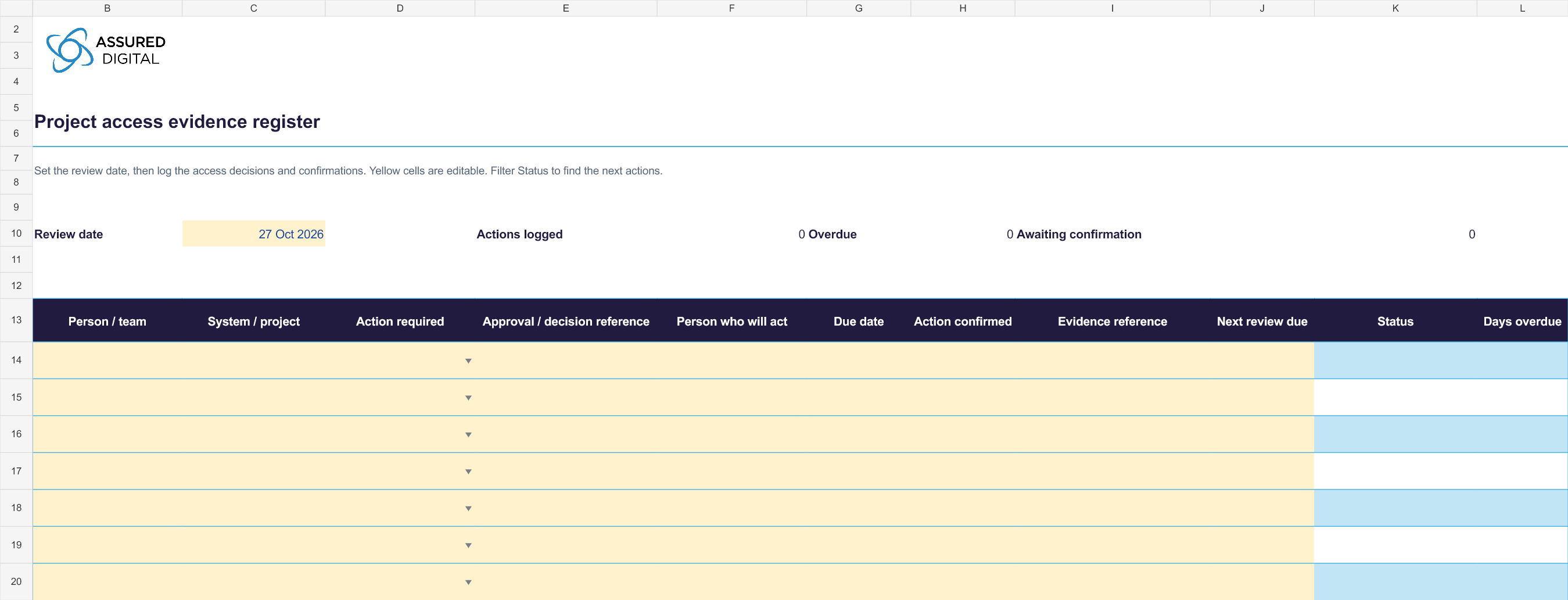
Project access evidence register
Keep approvals, access changes and follow-up in one editable register. Set the review date and add your records; the status columns flag overdue actions and missing confirmation or evidence.
See a worked example: IT has acted, the client confirmation is pending
IT has finished its part.
The client confirmation is still needed.
This illustrative example records both facts, with someone responsible for following up the client’s portal access.
A record you can follow
Withdrawal
IT confirms removal of the relevant folder permissions. The client portal request is still awaiting confirmation, so the overall record stays open with a named follow-up owner.
- Person confirming the change
- IT + client administrator
- Evidence reference
- IT-042 / CR-009
- Status
- Client action pending
The example and references are illustrative. Use the register above to keep your own approval, review and completion references together.
Check the Cyber Essentials device and account distinctions
The device and the account
can have different answers.
An employee using their own phone is not the same assessment arrangement as a subcontractor using their employer’s device. Check the relationship before reusing a BYOD answer.
- Employee’s personal work phone
- Generally included in scope. The exception concerns devices used only for native calls, SMS or MFA.
- Third-party contractor’s own device
- Outside the applicant’s device assessment scope. Accounts your organisation provides remain in scope.
- Your device loaned to a contractor
- Organisation-owned equipment remains included. Keep the device and its controls in your working records.
Based on NCSC requirements v3.3, April 2026. Confirm your assessment arrangement with your certification body. App protection does not automatically exclude employee BYOD.
Read the personal-phone scope guideA comparison for IT and the colleague coordinating certification or customer assurance.A customer requirement you’d like help with?
Tell us what the customer needs and what still needs confirming. We can work with your IT colleague on the device, app and access controls behind the answer, and explain what any changes would involve.
Assured Digital is a UK technology partner. We bring IT, Microsoft, cyber security and communications together, with data and AI expertise when you need it.
Ask us about a customer requirement
Matthew can help you get the right technical colleagues involved.